
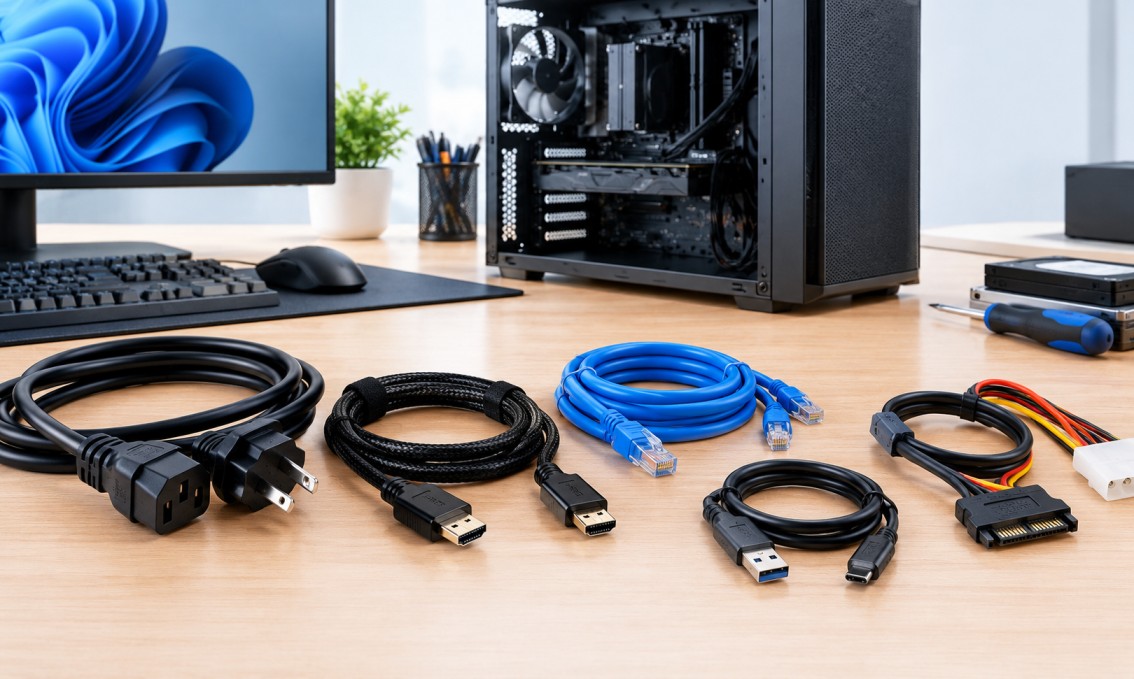
You have finished assembling your new PC, the components are seated, the case is closed, and then you notice that one cable is missing or the one you have does not fit. It is a familiar frustration for first-time builders and seasoned upgraders alike. Parts get most of the attention in any build, but the right computer cables are what actually bring those parts to life.
This guide walks through the main PC cables and computer cords you will meet, what each one does, and how to match them to your hardware so your build or upgrade goes smoothly.
Internal vs. External PC Cables
PC cables fall into two broad groups. Internal cables live inside the case and connect the power supply, motherboard, storage drives, and graphics card. External cables connect the finished computer to the wall, your monitor, and your peripherals. Knowing which group a cable belongs to helps you plan what to buy and what you already have.
Power Cables: Feeding Your Components
Power is the foundation of every build, and it involves two stages.
The first stage is the cord that runs from the wall to the back of the power supply. Most desktop power supplies use a standard detachable computer power cable with a three-prong plug on the wall end and an IEC connector on the supply end. These cords are interchangeable, which makes a spare easy to keep on hand. Choose one rated for the wattage of your system and make sure the connector fits snugly.
The second stage is the set of cables that run from the power supply to the components inside the case. These are the PSU cables, and the most common ones are:
• 24-pin motherboard connector: The large connector that supplies the main power to the motherboard.
• CPU power connector (4+4 or 8-pin): Delivers dedicated power to the processor.
• PCIe power connectors (6+2 pin): Feed power-hungry graphics cards. High-end cards may need several.
• SATA power connectors: Power storage drives and some accessories.
One important safety note: if you use a modular power supply, only use the cables that came with that specific unit. Even when a connector looks identical, the wiring on the power supply side can differ between models and brands, and swapping cables can damage your components.
Data Cables: Connecting Your Storage
Modern M.2 solid-state drives plug straight into the motherboard and need no cable at all. However, many builds still use 2.5-inch SSDs and 3.5-inch hard drives for extra capacity, and those need two cables: a SATA power connector from the power supply and a SATA data cable running to the motherboard.
The SATA data cable is thin, flat, and usually has an L-shaped or straight connector on each end. SATA III supports speeds up to 6 Gbps, which is more than enough for most drives. Older systems may use wide, flat IDE ribbon cables instead, but those are rarely found on current motherboards. If you are upgrading an older machine, check which type your drives and board use before ordering anything.
Display Cables: Connecting Your Monitor
Display cables are where many people run into compatibility questions, because there are several types and each has strengths.
• HDMI: The most widely supported option, found on nearly every monitor and television. Newer versions support high resolutions and refresh rates, but the version of the cable and the ports on both ends must support them.
• DisplayPort: A favorite among PC users, particularly for high refresh rate gaming monitors and multi-monitor setups. Many versions support daisy chaining multiple displays through a single port.
• DVI: An older digital standard still found on some monitors. It handles common resolutions but lacks the bandwidth and features of newer connections.
• VGA: An analog connector from the early days of PC displays. It is still used on older monitors and projectors, but image quality is lower, especially at higher resolutions.
For most modern setups, HDMI or DisplayPort is the best choice. If you are comparing the two for a PC monitor, DisplayPort often has the edge for high refresh rates, while HDMI is the easier choice when connecting to a television or a monitor that offers only that port.
A common mistake is plugging the monitor cable into the motherboard instead of the graphics card. If your PC has a dedicated graphics card, always connect your display to that card’s ports.
USB and Peripheral Cables
Keyboards, mice, webcams, headsets, and external drives typically connect by USB. USB 2.0 offers speeds up to 480 Mbps, which is fine for keyboards and mice, while USB 3.0 and newer versions are much faster and better suited to external storage and high-resolution cameras. A USB cable for your PC should match both the connector shape on your device and the speed you need. Very old keyboards and mice may still use round PS/2 connectors, which require a matching port or an adapter.
Do PC Cables Affect Performance?
In most cases, a cable does not make your PC faster, but the wrong one can hold it back. A display cable that does not support your monitor’s resolution or refresh rate may limit the picture quality. A slow USB cable will bottleneck an external SSD. A poorly made power cable can cause unstable behavior or, in the worst case, a safety risk. Matching the cable’s specification to your hardware is what matters, and well-built cables with solid connectors make that match reliable.
How to Choose the Right Computer Cable
• Check the ports first: Look at both ends of the connection before you buy. Confirm the connector type and, where relevant, the version.
• Match the cable to the job: Power, data, and video cables are not interchangeable, even if some connectors look alike.
• Mind the length: Too short and it strains the connectors. Too long and it clutters your desk or case.
• Consider future upgrades: If you plan to add a faster monitor or storage drive, a higher-spec cable now can save a second purchase later.
Cable Management Tips
Good cable management is not just about looks. Tidy cables improve airflow inside the case, which helps keep components cooler, and they make future upgrades much easier. Route cables behind the motherboard tray where possible, use hook-and-loop straps or cable ties to bundle them, and avoid sharp bends that can damage the wires or connectors.
Your Pre-Build Cable Checklist
• Power: A wall power cord and the full set of PSU cables for your motherboard, processor, graphics card, and drives.
• Storage: SATA data and power cables for any 2.5-inch or 3.5-inch drives.
• Display: A cable that matches your monitor and graphics card ports and supports your target resolution and refresh rate.
• Peripherals: USB cables for your keyboard, mouse, and any external devices.
• Extras: A spare power cord, a few cable ties, and a spare SATA cable.
Final Thoughts
The right computer cables rarely get the spotlight, but they decide whether a build comes together smoothly or stalls at the last step. Know what each cable does, check your ports before you buy, and stay within the cables designed for your power supply. With that groundwork done, your new build or upgrade will be up and running in no time.